

About 3 minutes · no code
How to Connect Your Framer Forms to Brevo (Step-by-Step)
You already have a form on your Framer site. By the end of this page, every person who fills it in will land in your Brevo CRM as a subscriber with their company synced— with your design, your fields and your success state untouched.
What you need first
A published or draft Framer site with a form on it, and a Brevo account with at least one list to put subscribers in.
Step 1
Design your Framer form as you normally would
Open the page your form should live on. Two placement rules matter, and they are the thing people most often get wrong:
Your form sits outside the page frame, beside it on the canvas.
The connector you add in step 2 sits inside the page frame.
The connector is what renders on the published site; it pulls in the form you point it at. If you drag your form onto the canvas beside the page and leave it there, you’re set.
Set ‘Send to’ while you’re here. Submissions will reach Brevo whether or not Send To is filled in — but your custom states won’t behave without setting it.
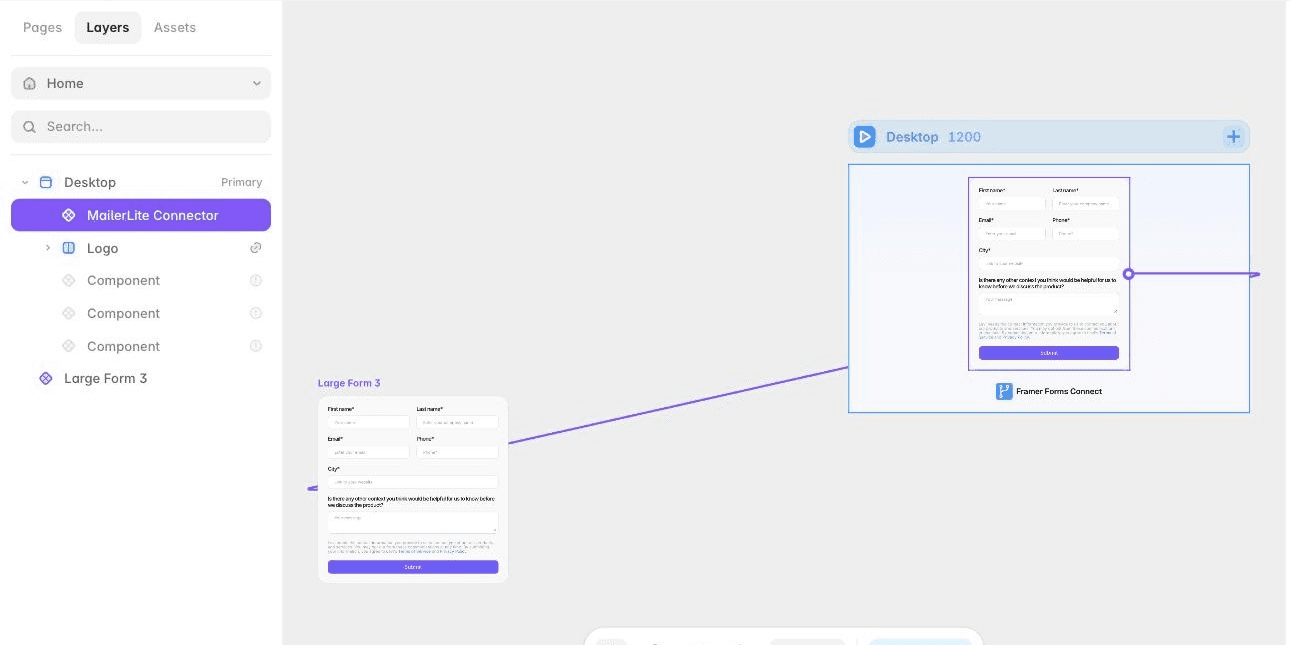
Left: your form, loose on the canvas. Right: the connector, nested inside the page frame — see the Layers panel. The purple line is the link between them.
Step 2
Create a Brevo API key for the plugin
Brevo connects with an API key. In Brevo go to Settings → Organization settings → API keys & MCP
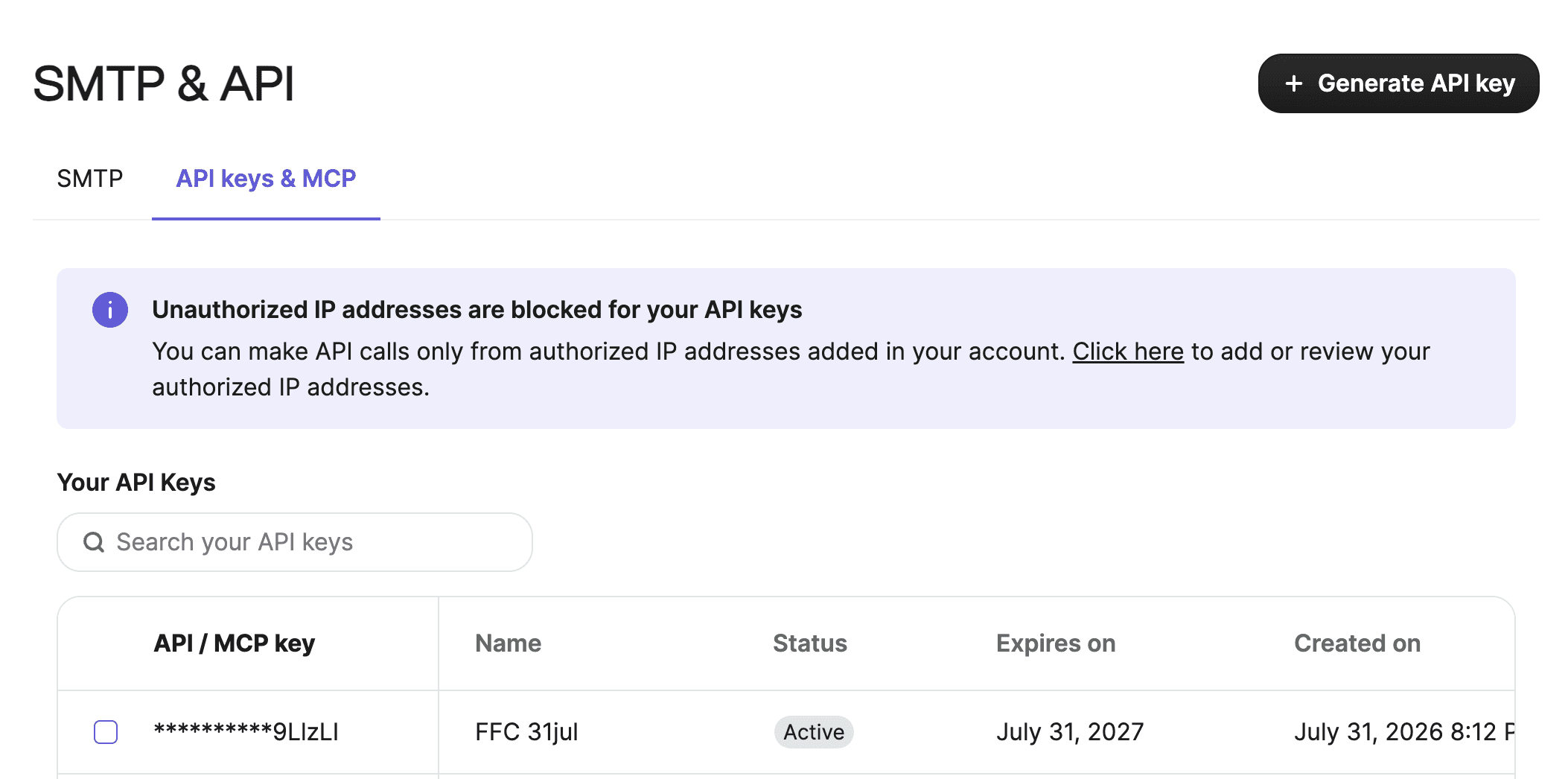
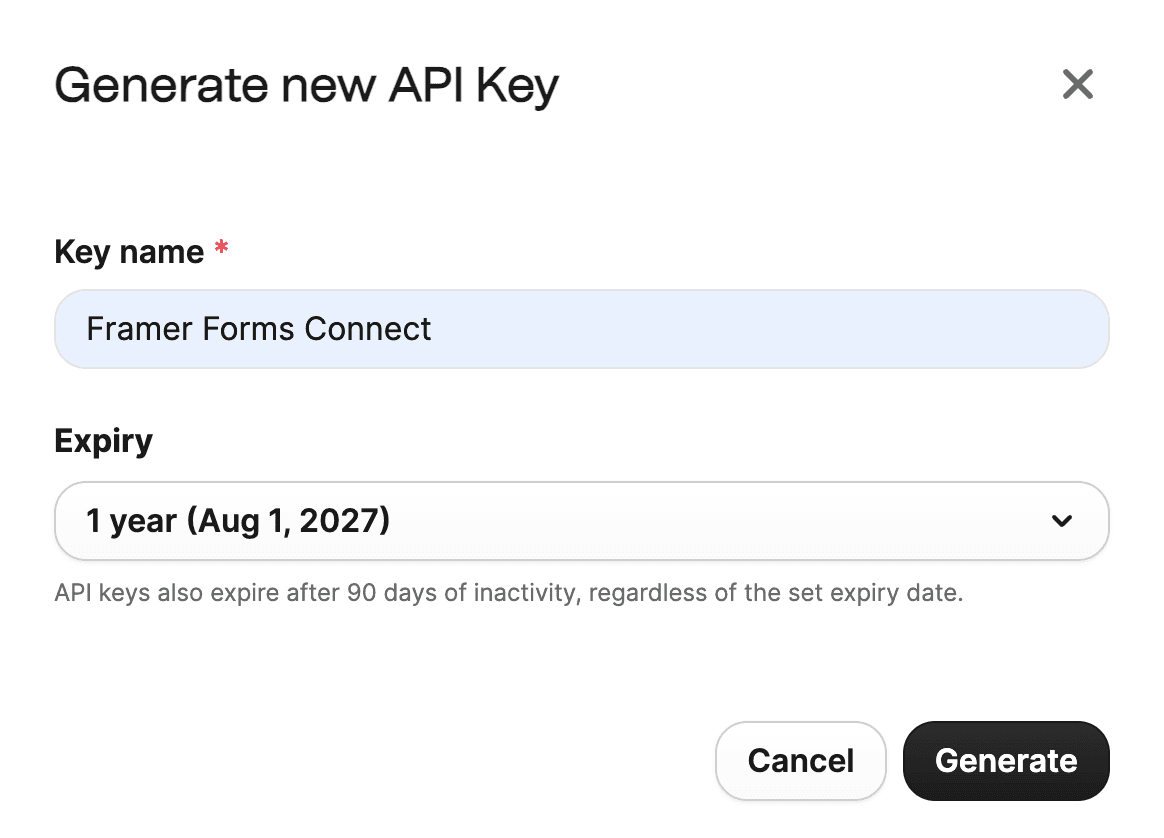
Click Generate API key and set the name. Anything you like — the name of the site it’s for is a good habit.
By default Brevo will only accept requests from authorized IPs.
Go to Security > Authorized IPs and choose All IPs allowed. Alternatively, you can whitelist Framer's IP addresses, but that means finding Framer’s outbound IPs and keeping them current as they change.
The key is shown once. Brevo never reveals it again — the list only shows names and dates. Copy it and paste it into the plugin before you close the dialog. If you lose it, generate a new one; there’s no way to read the old one back
Step 3
Connect Brevo to your Framer form from the plugin
Open the plugin. Framer menu → Plugins → Browse All, search for Framer Forms Connect.
Once it’s installed, Plugins → Run Recent Plugin is quicker.
Add Brevo. Drag it onto your page, or click the +. .
Wire the connector to your form. Drag from the purple dot on the edge of the connector onto your form. A purple line joins them, and the connector’s settings in the right-hand panel now name your form. If that field still says Select…, the link didn’t take — drag again.
Paste the key into the plugin and hit Connect Brevo.
No API key? If you’re working with a client who won’t hand one over, use Don’t have the login details? Configure manually and paste the HTML embed code from a Brevo form instead. Everything else works the same — except the plugin can’t suggest field names, so you’ll be matching them by hand.
Select your list. This is the list subscribers land in. Pick it before mapping fields, because the field list depends on the list.
Match the field names. The plugin lists every field in that group with a Click to copy chip. Copy each chip, select the matching input inside your Framer form, and paste it into the input’s Name property.
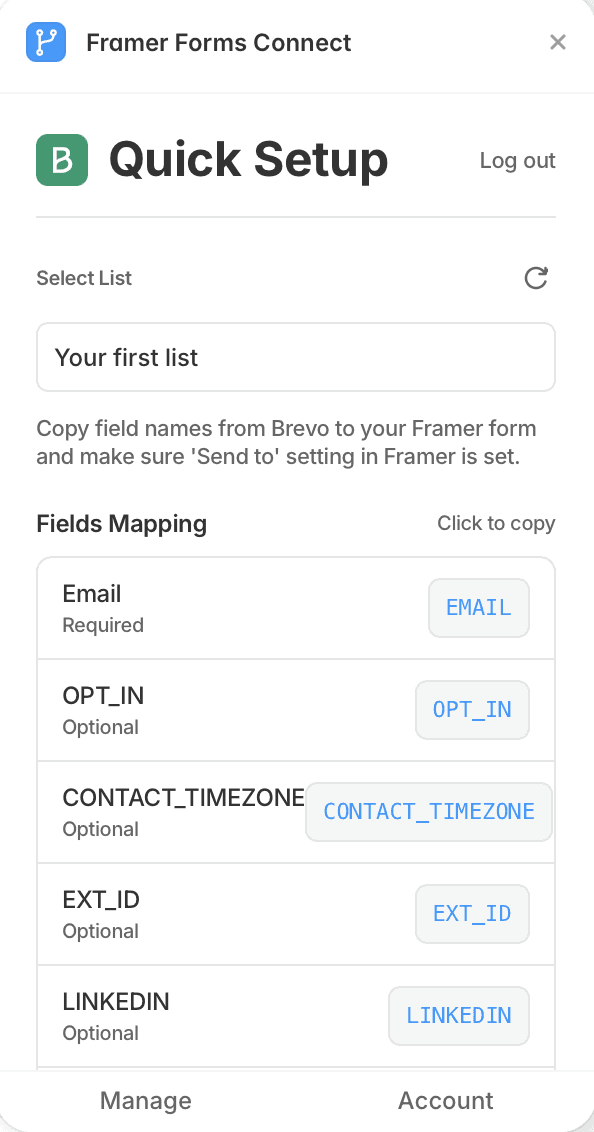
✔ Names are case-sensitive and exact. EMAIL is not email.
✔ Some names look like typos but aren’t — EXT_ID is genuinely what Brevo expects. Copy the chip, don’t retype it.
✔ Every field Brevo marks Required needs a counterpart in your Framer form. Optional ones you can skip.
✔ The Name property is separate from the label and the placeholder. Those stay however you designed them.
Step 4
Test the Brevo connection, then publish
Hit Publish, open the live URL and send a real submission. Testing on the published site is the only way to see what Brevo actually says back.
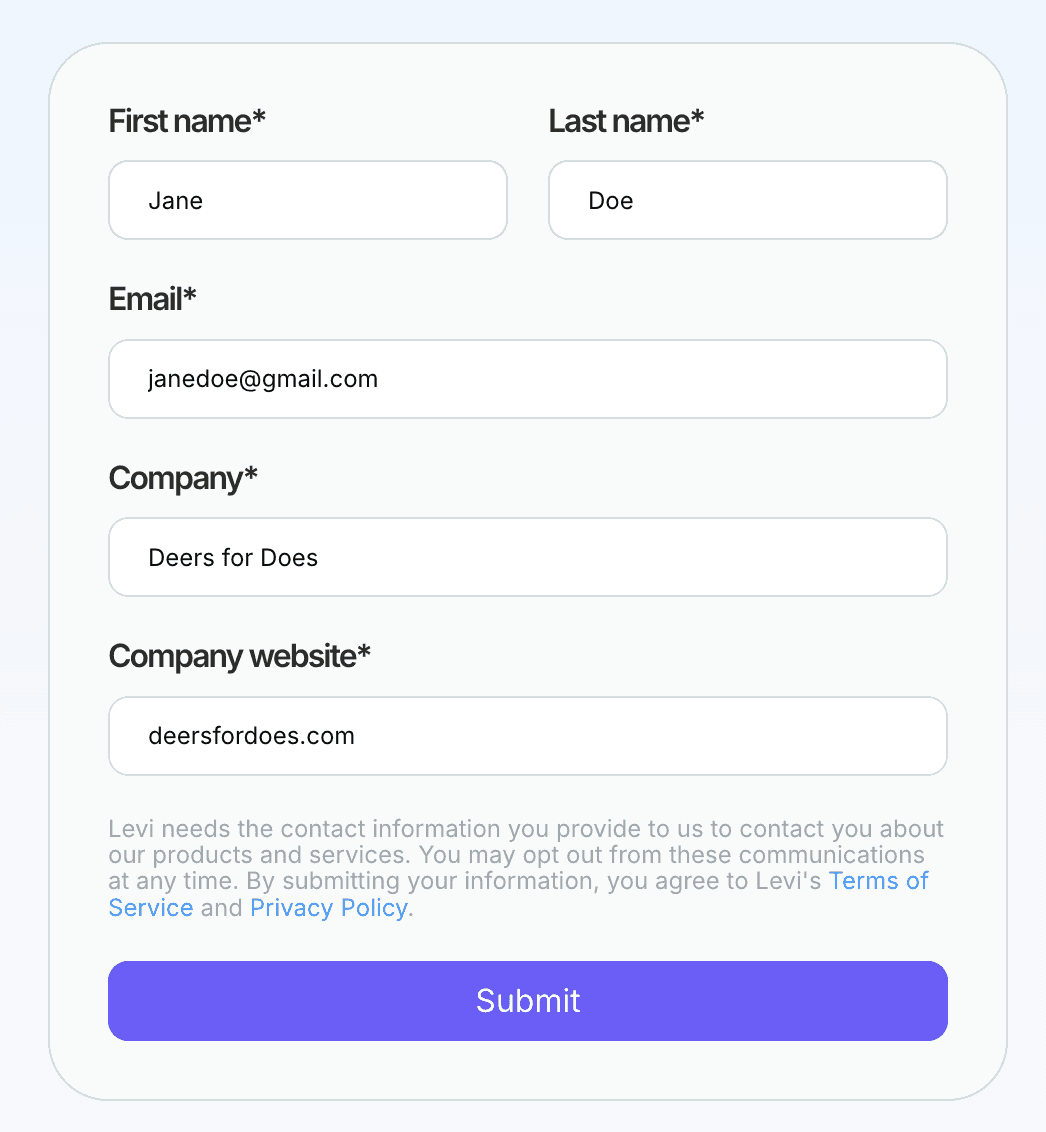
Fill it in as a visitor would.
A green line under the form means it went through:
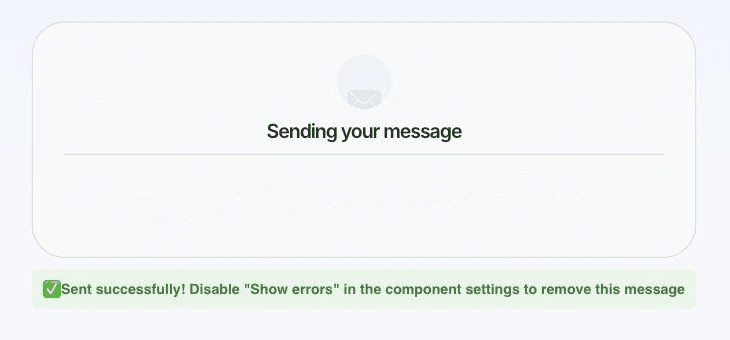
Fill it in as a visitor would.
If something is off, you get the reason rather than a silent failure. A missing required field reads like this:
⚠ REQUIRED_FIELD: Error in 'fields.consent'. Required field 'consent' is missing
Last thing before you call it done. Select the Brevo Connector on the canvas and set Show Errors to No. That banner is a build-time diagnostic — useful to you, confusing to visitors.
Publish once more. Every submission now adds a subscriber to your group as it happens.
Before you decide
Why not Zapier, Make or a webhook?
You can wire a Framer form to Brevo with Framer’s webhook and an automation tool. Forms Connect exists because that route adds three things you then have to babysit:
A second subscription. Zapier and Make bill per task. Every submission is a task, and the free tiers run out fast.
A silent point of failure. If the automation errors, the visitor still sees a success message and the lead is gone. The plugin shows you the reason on the page while you test.
Field mapping in two places. A webhook sends raw field names, so you map them again in the automation. The plugin reads Brevo’s field list and you map once, inside Framer.
If you already pay for Zapier and need one submission routed to five tools, use it. If you want one Brevo form connected in about two minutes with nothing else to maintain, that is what the plugin does.
Framer forms to Brevo: FAQ and troubleshooting
I need to sync companies along with my contacts. Can I do that in Framer Forms Connect?
Yes, you can add company fields just as you would with regular fields, such as company/name.
I get "Duplicate fields are not allowed" error
Check if you happen to have two fields with the same names, e.g. two "Company" fields.
Form works well on desktop, but collapses on mobile.
Set the wrapper's position as Fill in Framer instead of Fit.
You'll need to create a separate form and hide the desktop version on mobile.
Still stuck
Email us at annyeong@romans.design with the site URL and we’ll look at it with you. A real person reads it - no automated responses.
Before you write, two pages solve most cases: the ten checks for submissions that do not show up and where Framer form submissions go.
That’s the whole setup.
Every other integration follows the same five steps. Try it on your own site free for seven days.
Send Framer forms to other tools
HubSpot · Mailchimp · Beehiiv · MailerLite · Drip · Jotform · Slack · Discord · ClickUp · All tutorials